Classifications
The classifications area shows all classifications regardless of the respective status and operation.
List view
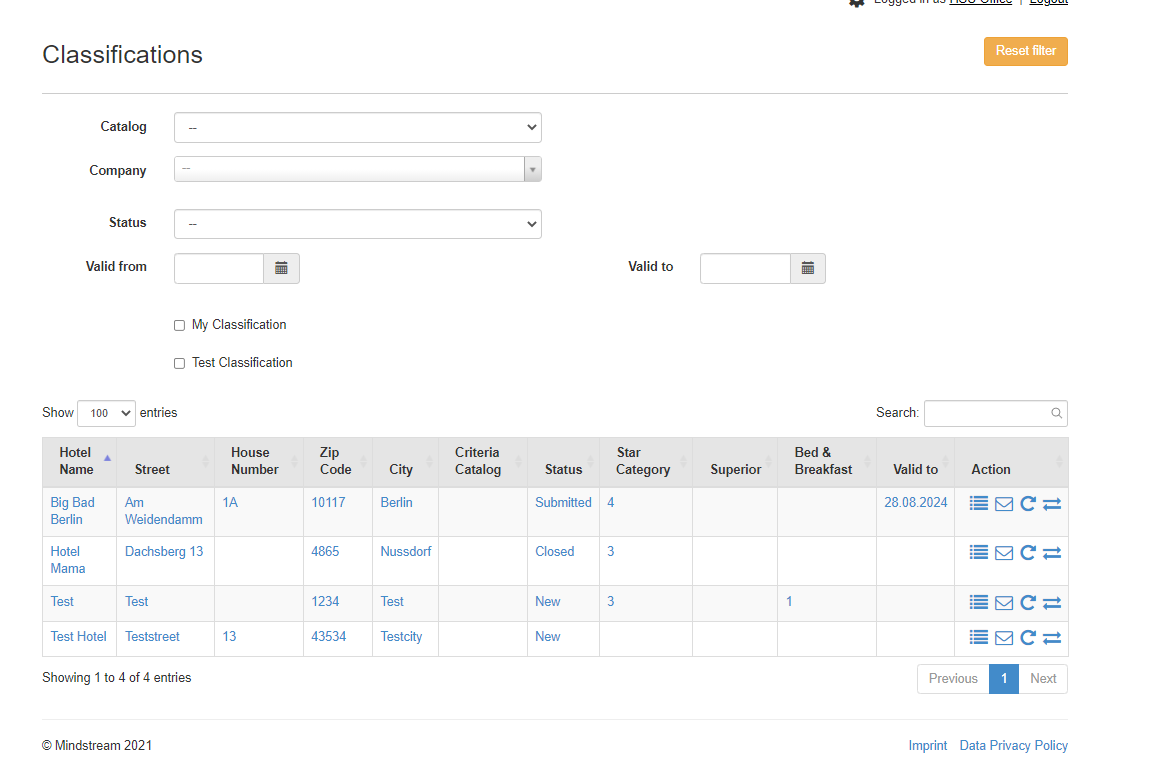
The list view shows all classifications regardless of status or operation. The following restrictions can be made using the filters:
- Text search : Filter by name or location of the company
- My classifications : Classifications in which you are registered as a member of the commission appear
- Test-classifications : only test classifications appear
- Company : Classifications of a particular establishment appear
- Status : Restriction according to a certain status
- Expiry date from / to : Restriction according to the expiry date
It should be noted that the filters are retained until they are reset accordingly.
Actions
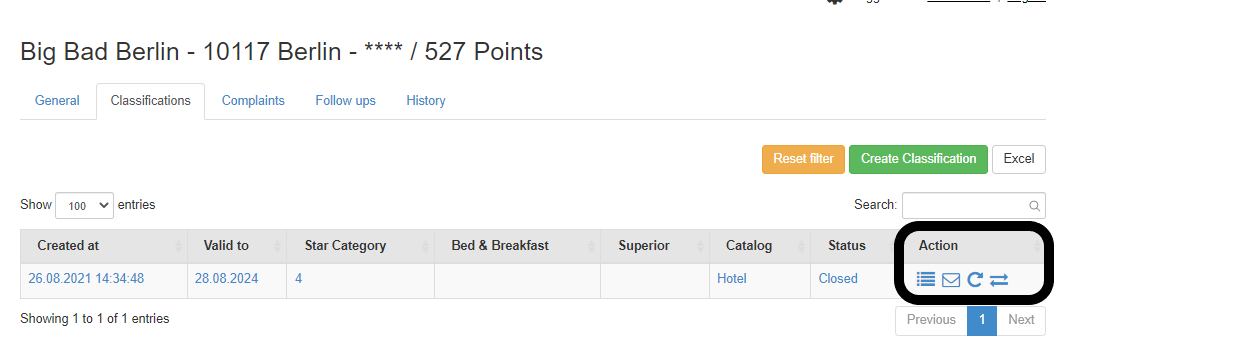
Clicking on the company name takes you to the classification view. The symbols on the right lead to the following areas:
- Show details : Show certain master data of this classification object
- Send mail to company : A single link can be sent to the hotelier by the classification society
- Edit completed classification : Classifications that have the status "completed" on the
Reset traffic jams "submitted" to influence the data
Create classification
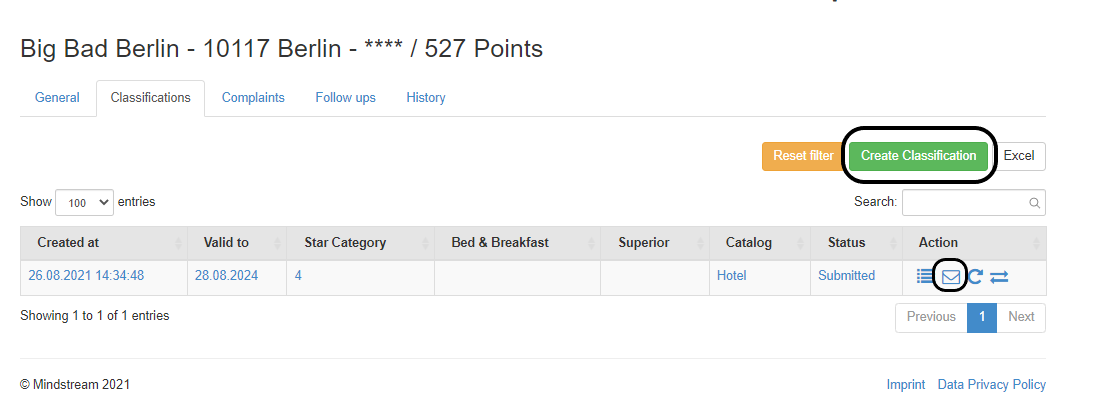
A new classification can only be made by entering a company. To do this, open the detailed view of a company and click on the Classification tab. There you will find the "Create classification" function (see picture above).
By executing this function, a new classification is created, the characteristics from the previous classification are automatically adopted and the classification view is opened.
All unselected criteria are automatically set to no when the data entry sheet is saved.
The classification can be sent to the hotel after it has been created and as long as it is in the "New" status. The mail template or the one-time link is created using the list view of the classification tab (see image below). The one-time link can be used until the classification is submitted. This means that the company does not have to fill out the classification in one go, but can also pause it.
Classification detail view
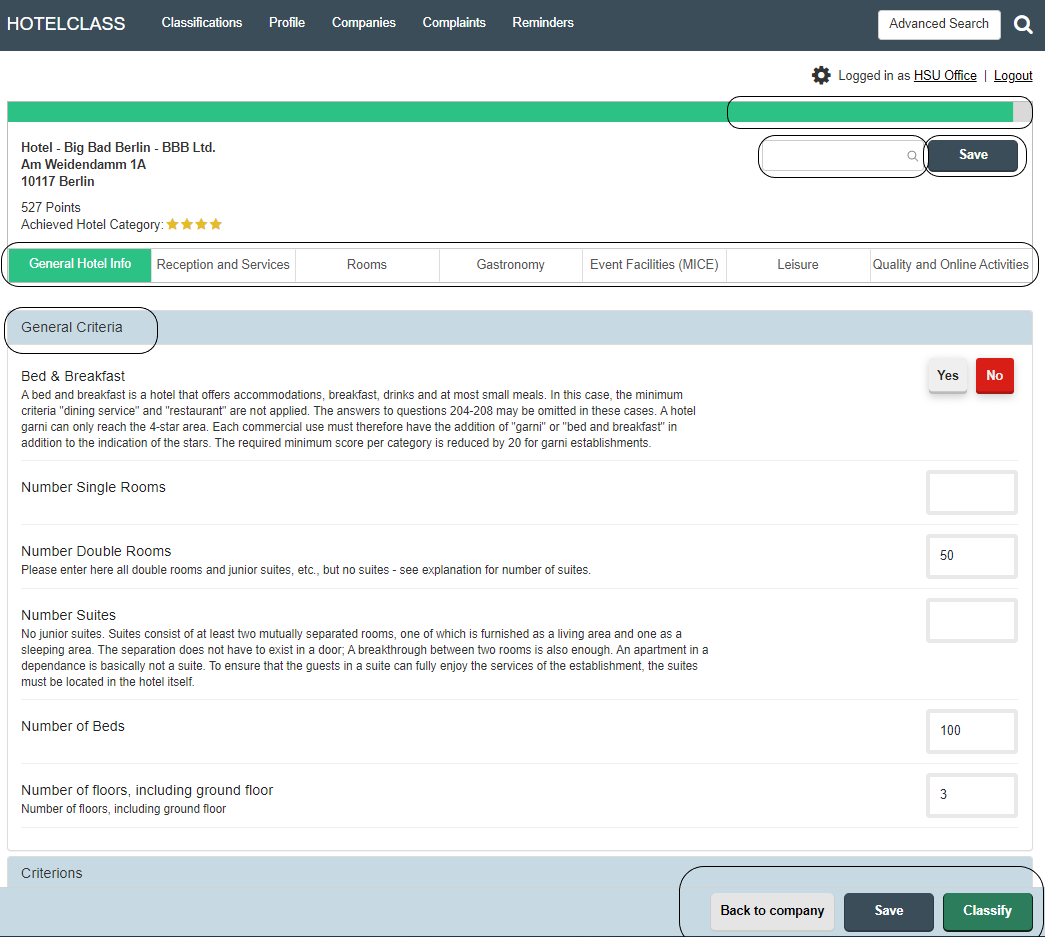
A classification view is divided into the following areas:
- Header area: Representation of the status of the degree of completion and points reached, possible feature search, saving
- General property features: All general information such as the number of rooms and suites can be entered in this area
- Categories: The categories reflect the main groups of the criteria catalog and can be selected with one click
- Action bar: possibility of saving, submitting the classification and also the possibility of going back to the company
- Conclusion: At the end of the classification, the total point achieved and the star category achieved are displayed. Minimum criteria not achieved in the individual star categories are marked with a red exclamation mark.
The number of points, minimum criteria not met and the star category achieved is calculated and displayed live when you fill out the form.
Classification status
In the detailed view of a classification, various options can be selected using the "Status" selection area (see figure). The statuses are explained below:
| Status | How is it set? | Meaning |
| New | In the case of a new installation by a committee member or via the test classification | The classification process is initiated |
| Submitted | Is set by the hotelier or the commissioner using the "Submit" button on the questionnaire | A test classification has been submitted |
| Closed | Is by the button "Classify" in Questionnaire set by the commissioner |
The classification process is fully completed |