Manual Hotelclass
A manual to provide an overview on how to use the hotelclass database and ensure the display of the correct hotel data in the database and all connected platforms.
User
The introductory chapter goes to all the necessary information about your own account and basic functions for administration.
Registration
Registration is only required for auditors and administrators.
Hotels can access a limited area of the database through a one-time link and do not require any login data.
Login
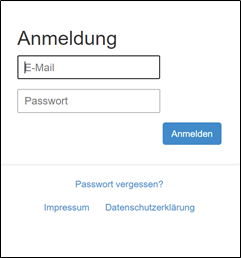
The registration takes place on the basis of the registered e-mail address in connection with the individually assigned password.
The country is automatically based on the access data.
Forgotten Password
The forgotten password application can be used to reset the data accordingly.
By entering the email address, a new password is assigned and sent by email.

My account
The current login is displayed in the header.

There you can go to the "My Account" area. The profile can be managed in this area and a new password can be assigned
Log out
You can log out of the system manually using the following link in the header area:

After logging out, you will return to the registration area. The system also logs out automatically if the user is inactive for a certain period of time.
Clients
Each user is clearly assigned to a country and state. The data are completely separated between the countries.
Header
The user interface or the start page can be divided into various sub-items. Each of these sub-items contains different functions and options. Due to the complexity of some areas, these are dealt with in separate chapters.
Global search
Using the global search, the required information can be found in the areas of companies, classifications, resubmissions, complaints and profiles in the respective selected client. By selecting and clicking on the search result you require, you will be taken directly to the detailed view.

Dashboard
The dashboard provides statistical information and shows the status of the verified data in the respective federal state.
The listed aspects under the sub-item statistics can also be used as a quick start. The filters are set so that only entries are displayed that are relevant and activated for the logged in user.
Advanced Search
Using the advanced search, all of the companies stored in the system can be filtered according to specific criteria or hints The results can be displayed either via an Excel list or directly in the system.

Various search factors can be entered into the search mask, e.g. catalog versions, parts of company names, street, zip code, status of the classification, etc.
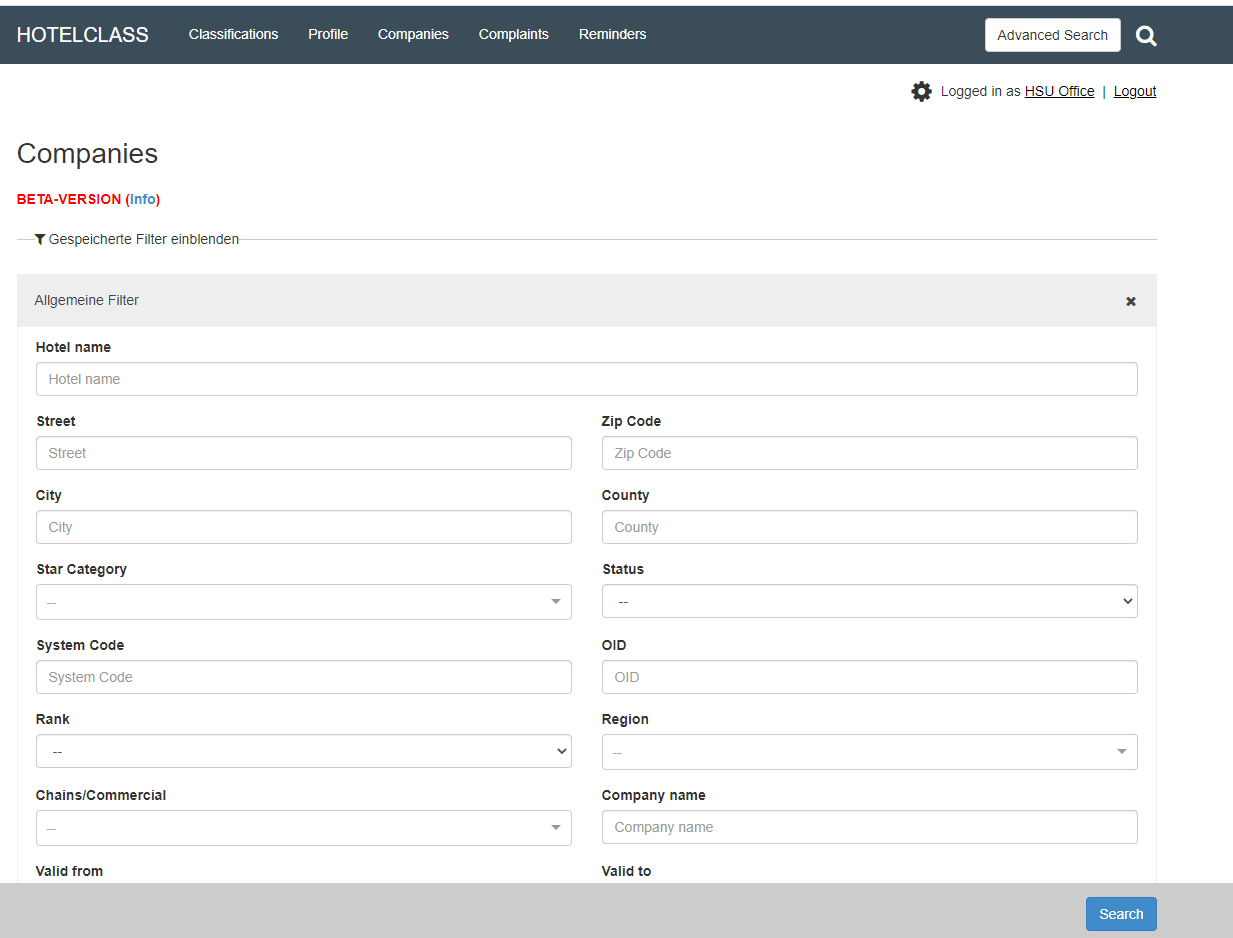
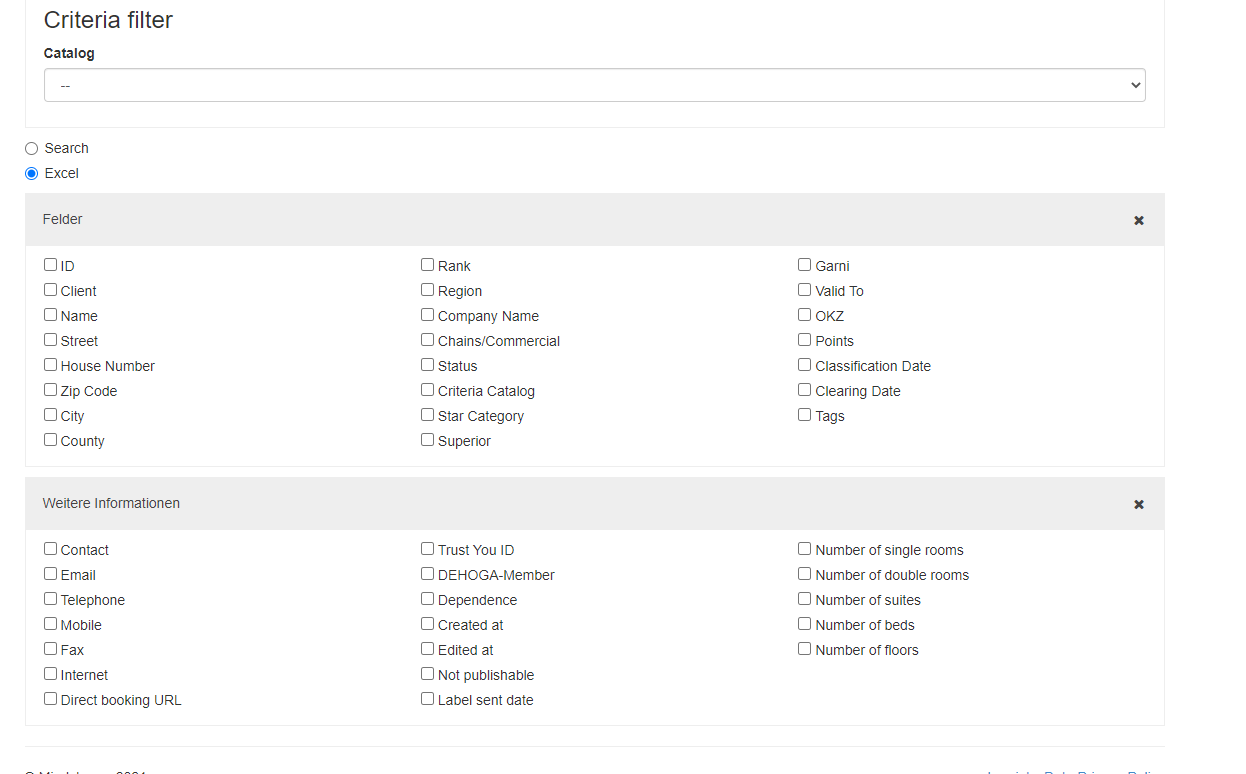
In addition to the "normal search display", there is also the search using the Excel function or export. For the
Excel search gives you more search criteria. The search can be refined very much using the various search criteria, and an Excel export can also be carried out afterwards.
Again, all data is in an Excel sheet, provided they are stored in the database. In addition, there is the option of narrowing down the search using certain “criteria”. To do this, select the desired catalog version and define the characteristics.
Complaints
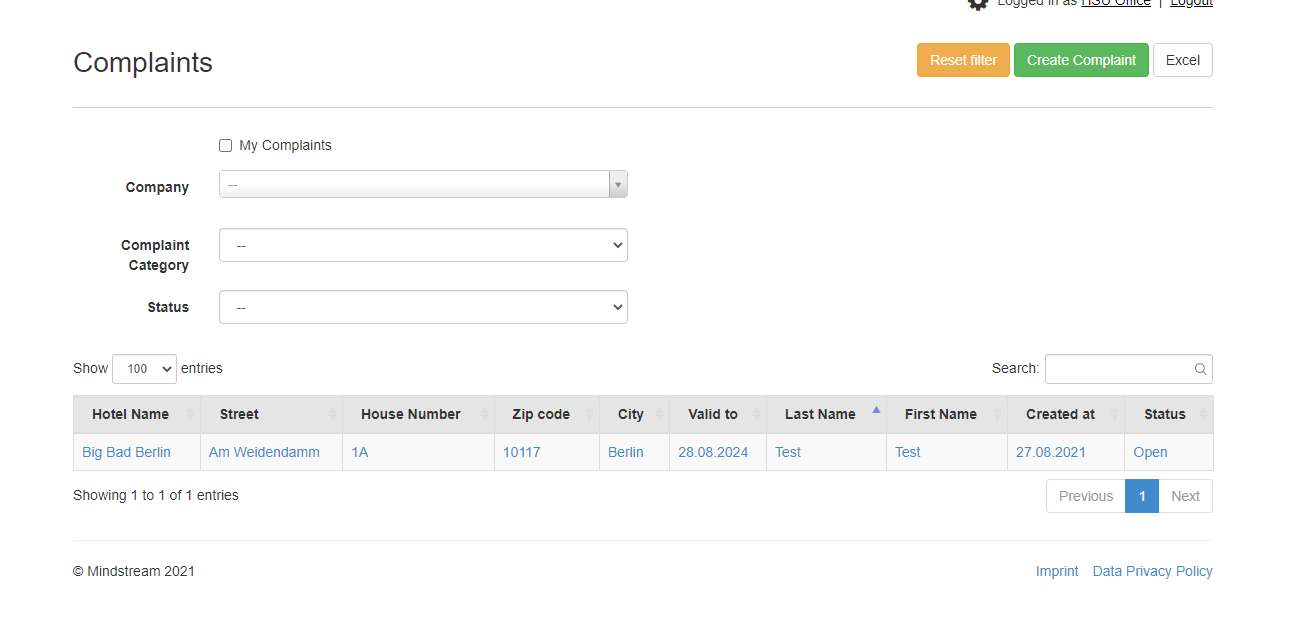
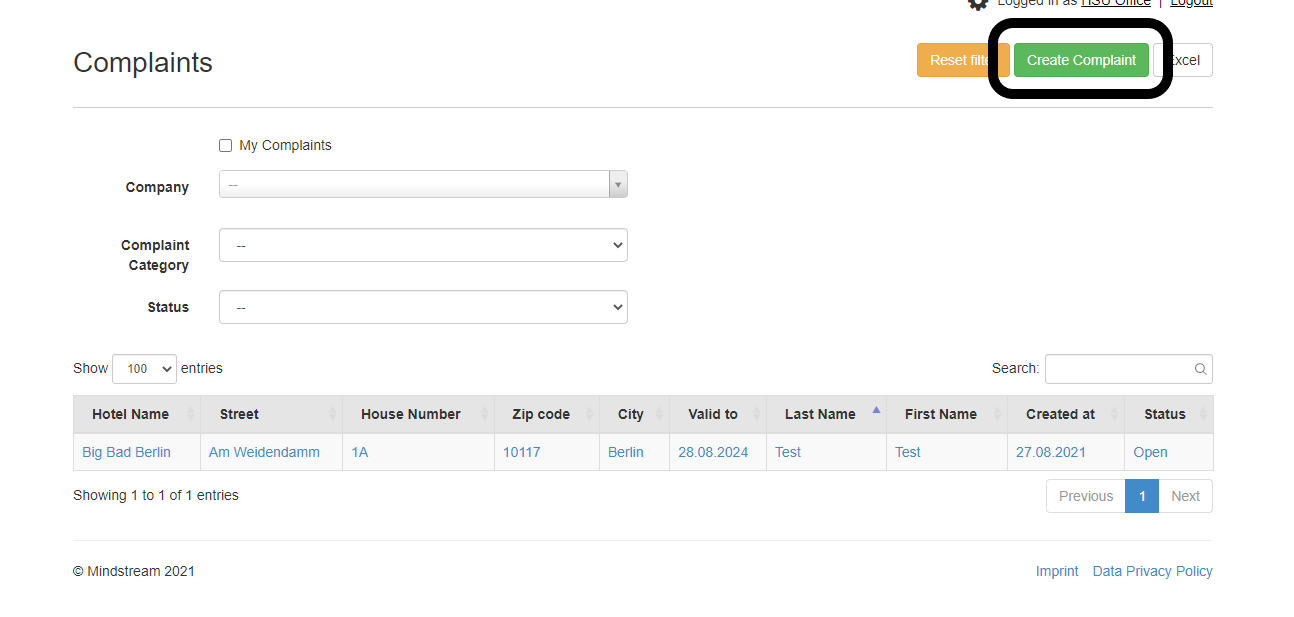
The list view shows all complaints. The following restrictions can be made using the filters:
- Text search : Filter by title and description of a complaint
- My companies : Companies in which you are registered as a commission member appear
- Complaint category : filter according to the category specified in the complaint
- Status : A distinction can be made between open, in progress and closed
- Excel : the companies can be exported in a list via the output
By clicking on the hotel name you get to the complaint detail view.
New complaints can be created via "Create complaint".
Reminders
This tool is important to manage a larger number of classifications or complaints, especially if the companies still have to submit documents and evidence.
These appointments can be recorded and maintained within the system.
Classifications
The classifications area shows all classifications regardless of the respective status and operation.
List view
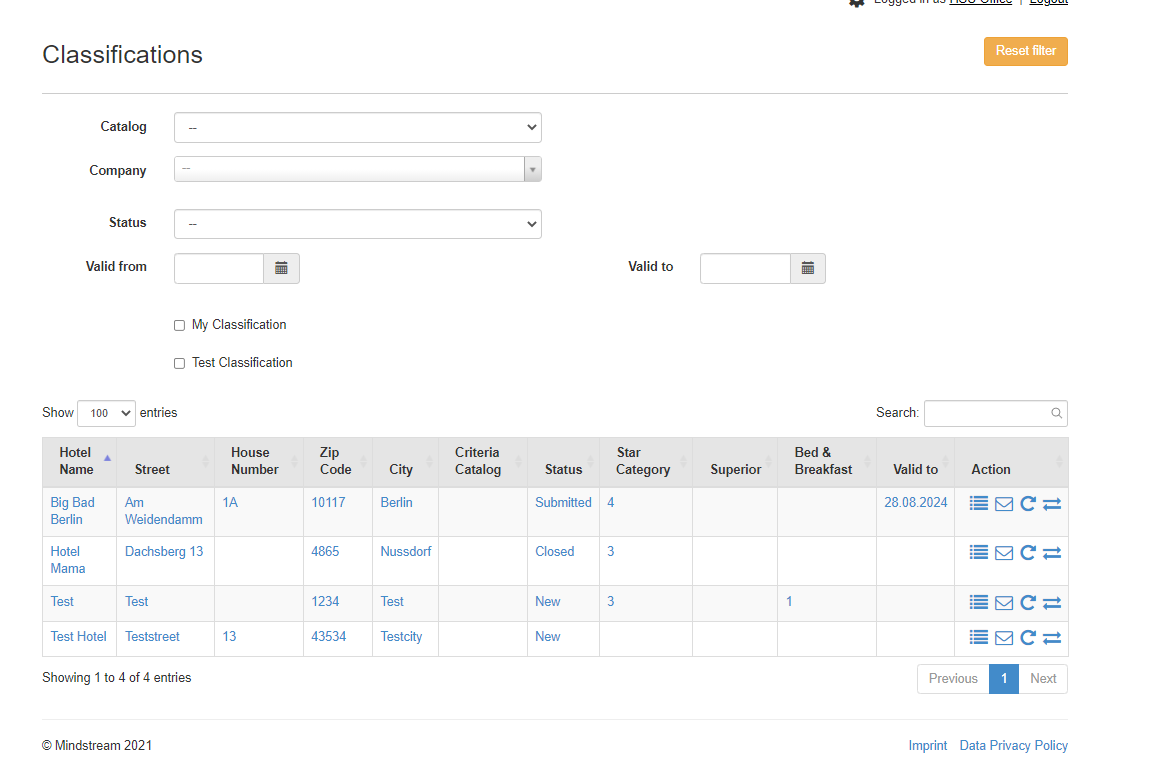
The list view shows all classifications regardless of status or operation. The following restrictions can be made using the filters:
- Text search : Filter by name or location of the company
- My classifications : Classifications in which you are registered as a member of the commission appear
- Test-classifications : only test classifications appear
- Company : Classifications of a particular establishment appear
- Status : Restriction according to a certain status
- Expiry date from / to : Restriction according to the expiry date
It should be noted that the filters are retained until they are reset accordingly.
Actions
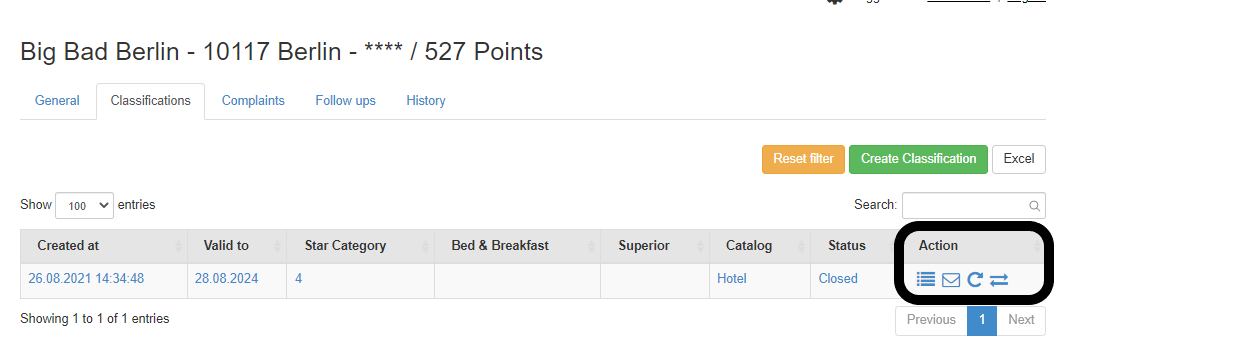
Clicking on the company name takes you to the classification view. The symbols on the right lead to the following areas:
- Show details : Show certain master data of this classification object
- Send mail to company : A single link can be sent to the hotelier by the classification society
- Edit completed classification : Classifications that have the status "completed" on the
Reset traffic jams "submitted" to influence the data
Create classification
A new classification can only be made by entering a company. To do this, open the detailed view of a company and click on the Classification tab. There you will find the "Create classification" function (see picture above).
By executing this function, a new classification is created, the characteristics from the previous classification are automatically adopted and the classification view is opened.
All unselected criteria are automatically set to no when the data entry sheet is saved.
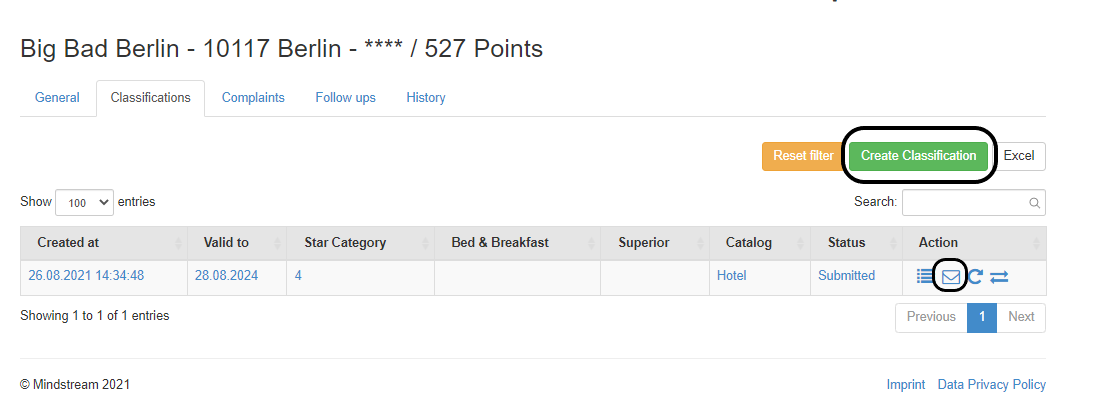
The classification can be sent to the hotel after it has been created and as long as it is in the "New" status. The mail template or the one-time link is created using the list view of the classification tab (see image below). The one-time link can be used until the classification is submitted. This means that the company does not have to fill out the classification in one go, but can also pause it.
Classification detail view
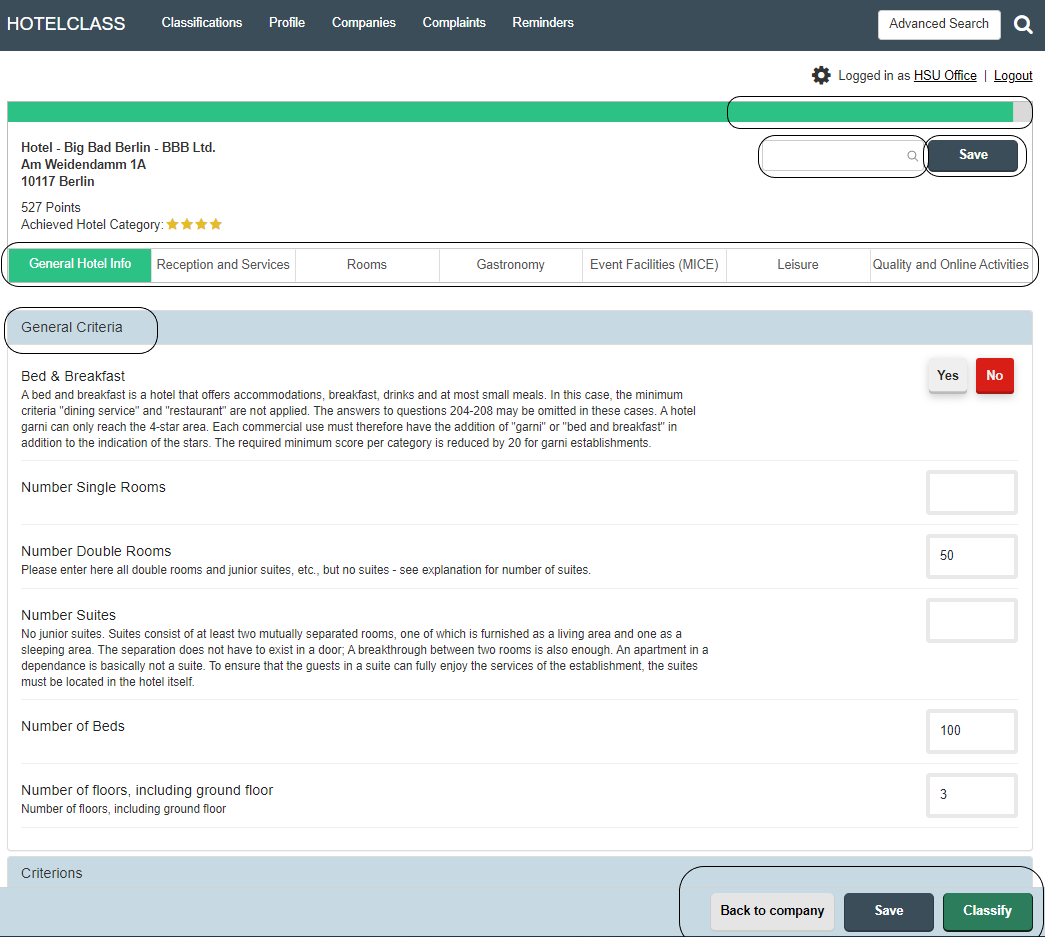
A classification view is divided into the following areas:
- Header area: Representation of the status of the degree of completion and points reached, possible feature search, saving
- General property features: All general information such as the number of rooms and suites can be entered in this area
- Categories: The categories reflect the main groups of the criteria catalog and can be selected with one click
- Action bar: possibility of saving, submitting the classification and also the possibility of going back to the company
- Conclusion: At the end of the classification, the total point achieved and the star category achieved are displayed. Minimum criteria not achieved in the individual star categories are marked with a red exclamation mark.
The number of points, minimum criteria not met and the star category achieved is calculated and displayed live when you fill out the form.
Classification status
In the detailed view of a classification, various options can be selected using the "Status" selection area (see figure). The statuses are explained below:
| Status | How is it set? | Meaning |
| New | In the case of a new installation by a committee member or via the test classification | The classification process is initiated |
| Submitted | Is set by the hotelier or the commissioner using the "Submit" button on the questionnaire | A test classification has been submitted |
| Closed | Is by the button "Classify" in Questionnaire set by the commissioner |
The classification process is fully completed |
Companies
List view
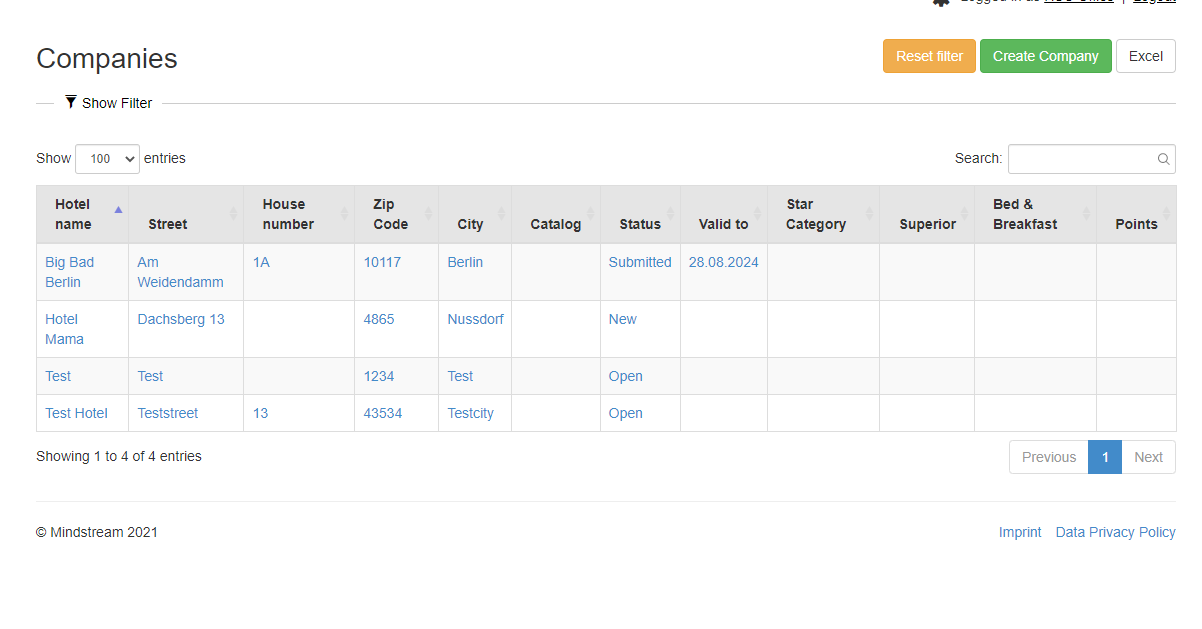
The list view shows all establishments regardless of their status. The following restrictions can be made using the filters:
- Text search : Filter by name or location of the company
- Status : Restriction according to a certain status
- Star category: Filtering according to the category 1 to 5 stars
- Expiry date from / to : Restriction according to the expiry date
- Tags : Search for keywords that are stored for the companies
- Create company: save new data of a company
- Excel: Functions are the same as those of the advanced search
It should be noted that the filters are retained until they are reset accordingly.
Create complaints
At the company level, new complaints can be created as required. To do this, go to the "Complaints" tab and then click on the "Create complaint" field (see image above).

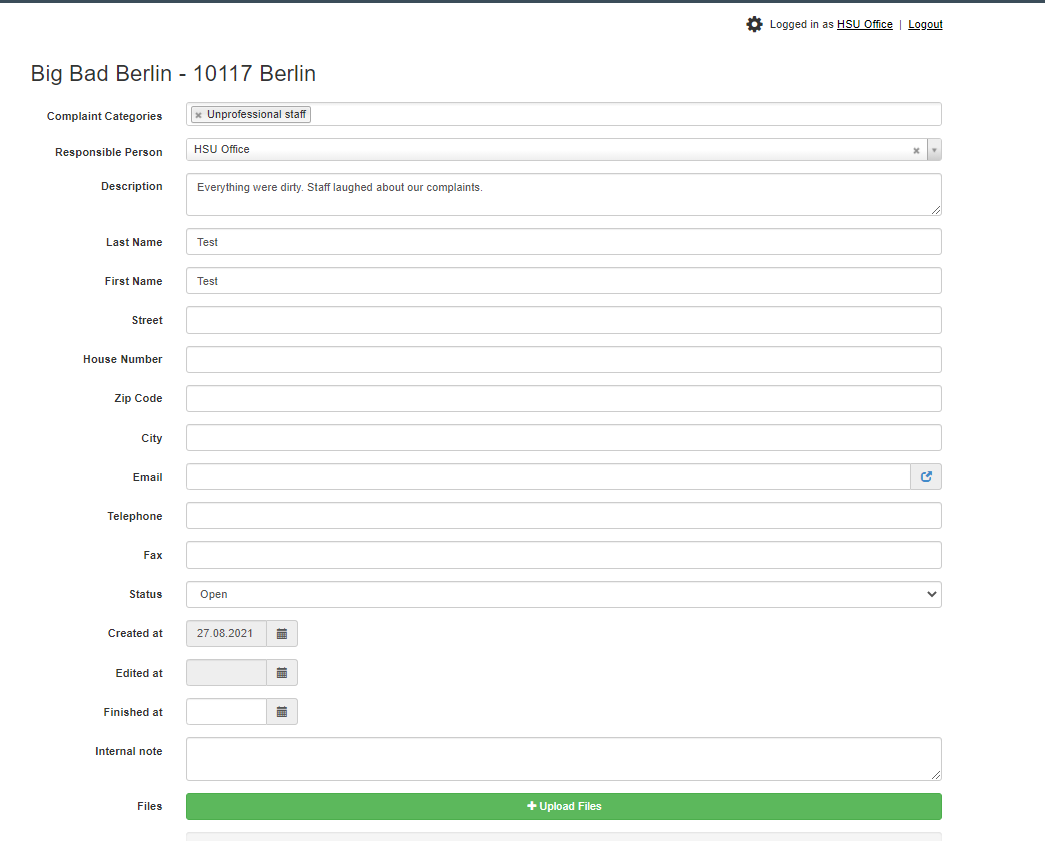
A new page opens, all important data must be entered on the page. This primarily includes the assignment to the relevant federal state via the "Client" field. Then create all the data on the complainant and the content of the complaint. Photos or other documents can be uploaded from the "Files" section. When creating a new complaint, it must first be saved before the function can be used.
Merge Companies
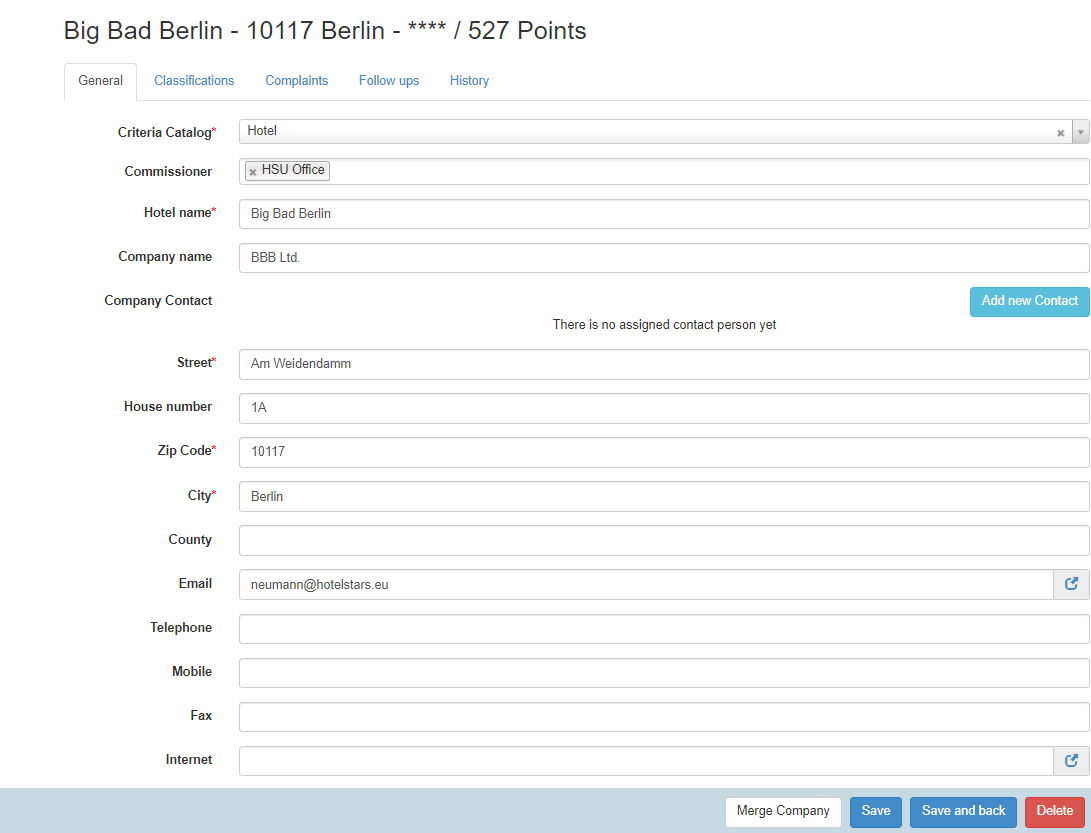
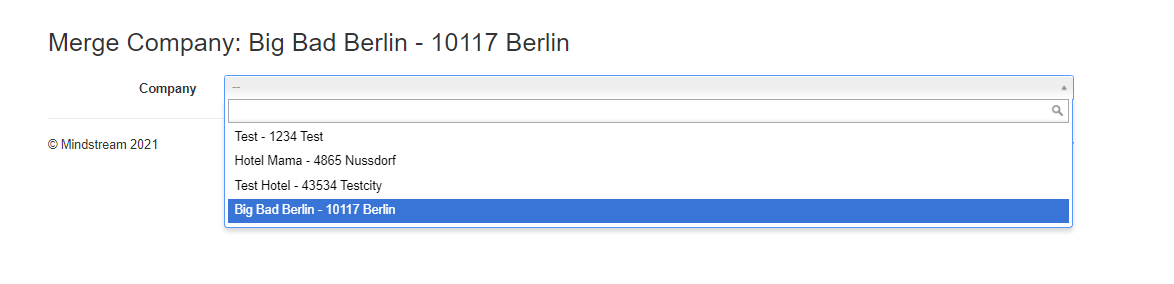
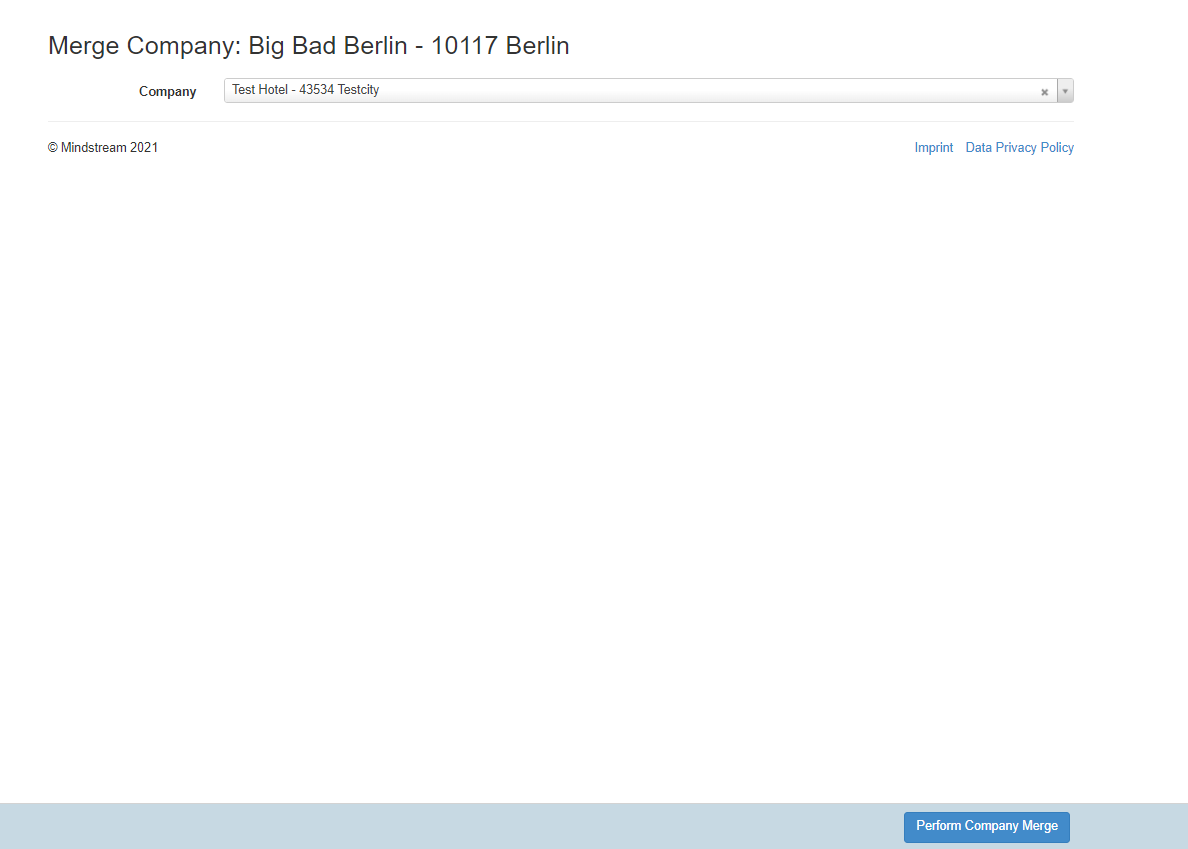
Companies can be merged in case